Upload pricing and inventory to Google Merchant Center multiple times per day using SFTP. Watch the tutorial in the hero video, then unlock the full checklist for Google and Microsoft Merchant Center.
Know Before Implementing
Using the FTP upload system for Merchant Center entails two important changes to how your feed works:
- When you apply a change to your feed in DataFeedWatch (DFW), those changes immediately process and send to Merchant Center. You will not have a chance to review changes before the updated feed data is sent unless you “Pause” the DFW channel first.
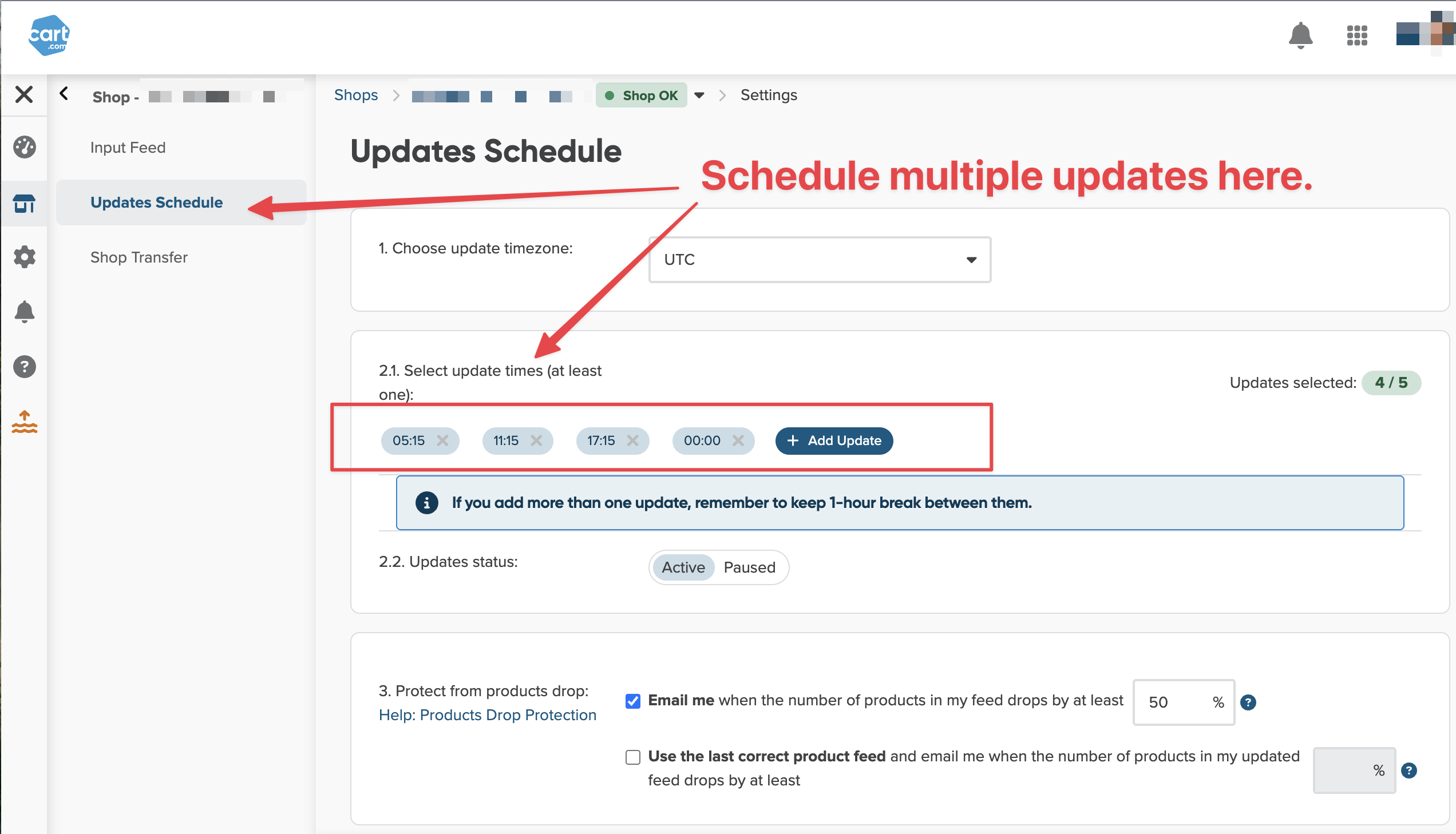
- You can add multiple daily feed updates to align with your internal product update schedule. For example, if you update shop product data at 8:00 am and 4:00 pm, set DFW to download at 9:00 am and 5:00 pm.
Important Terms
- Sending data source: in the video, the sending source is the DataFeedWatch Google Ads Channel.
- SFTP: Secure File Transfer Protocol — used to send data to Google Merchant Center.
Google Merchant Center
See Microsoft instructions below.
Steps
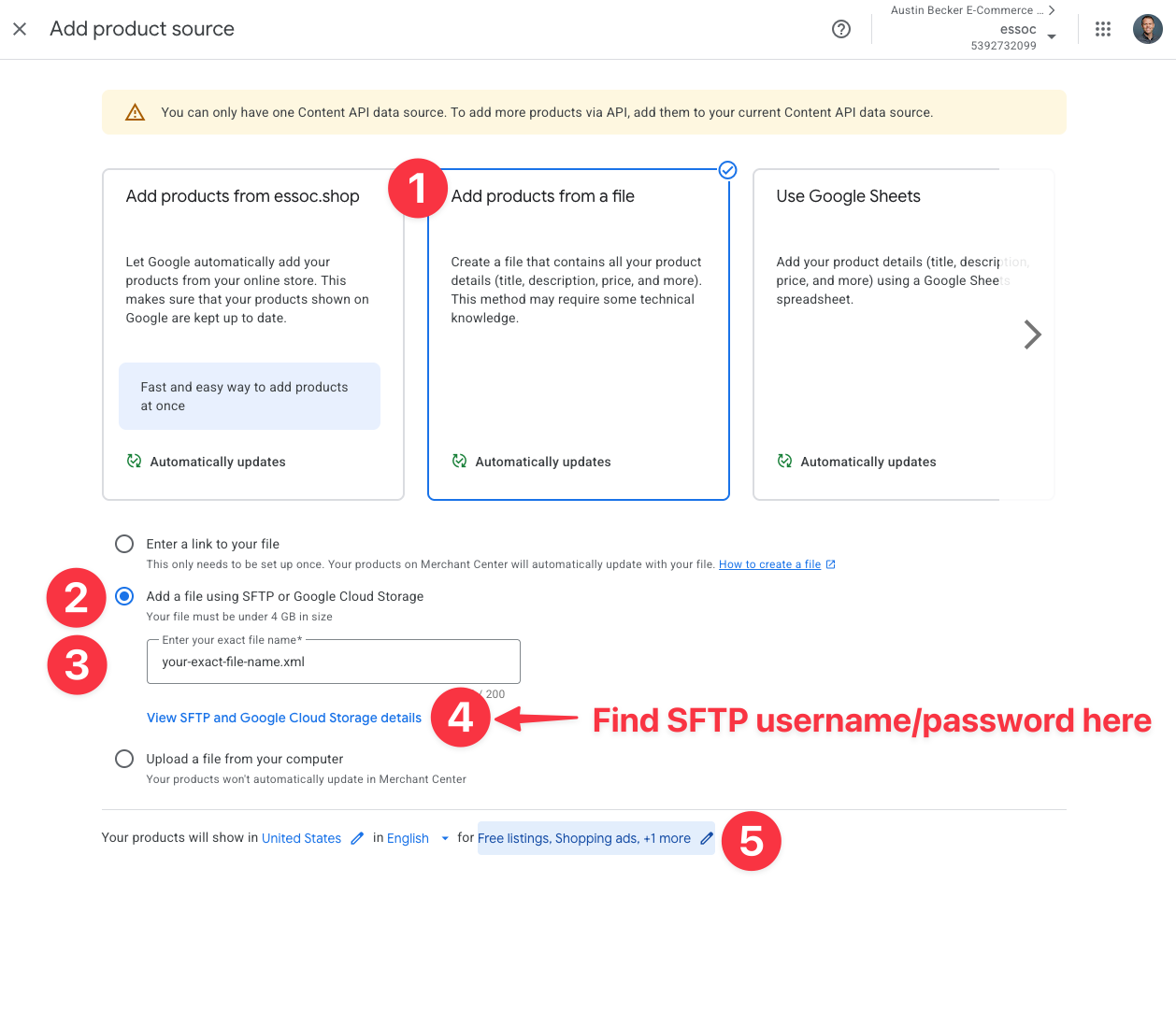
- Go to merchants.google.com → Gear Icon → Data Sources → “Add product source” → Add products from a file
- Select “Add a file use SFTP or Google Cloud Storage”
Where to view and record username, port, and password
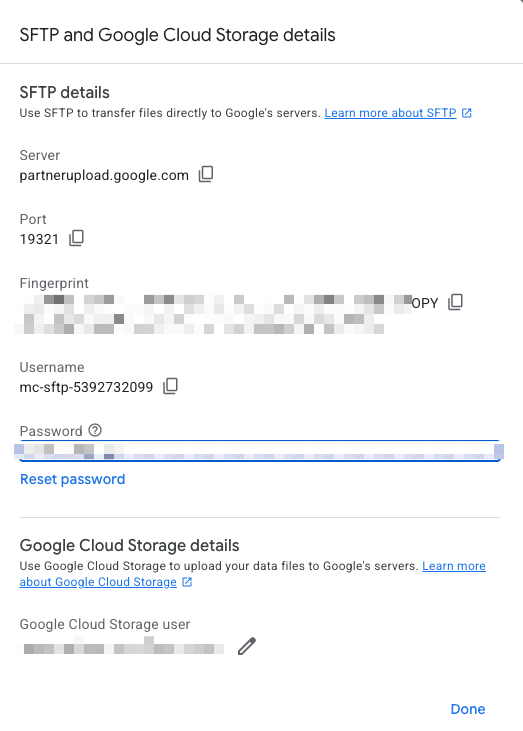
When you click View SFTP and Google Cloud Storage Details, write down:
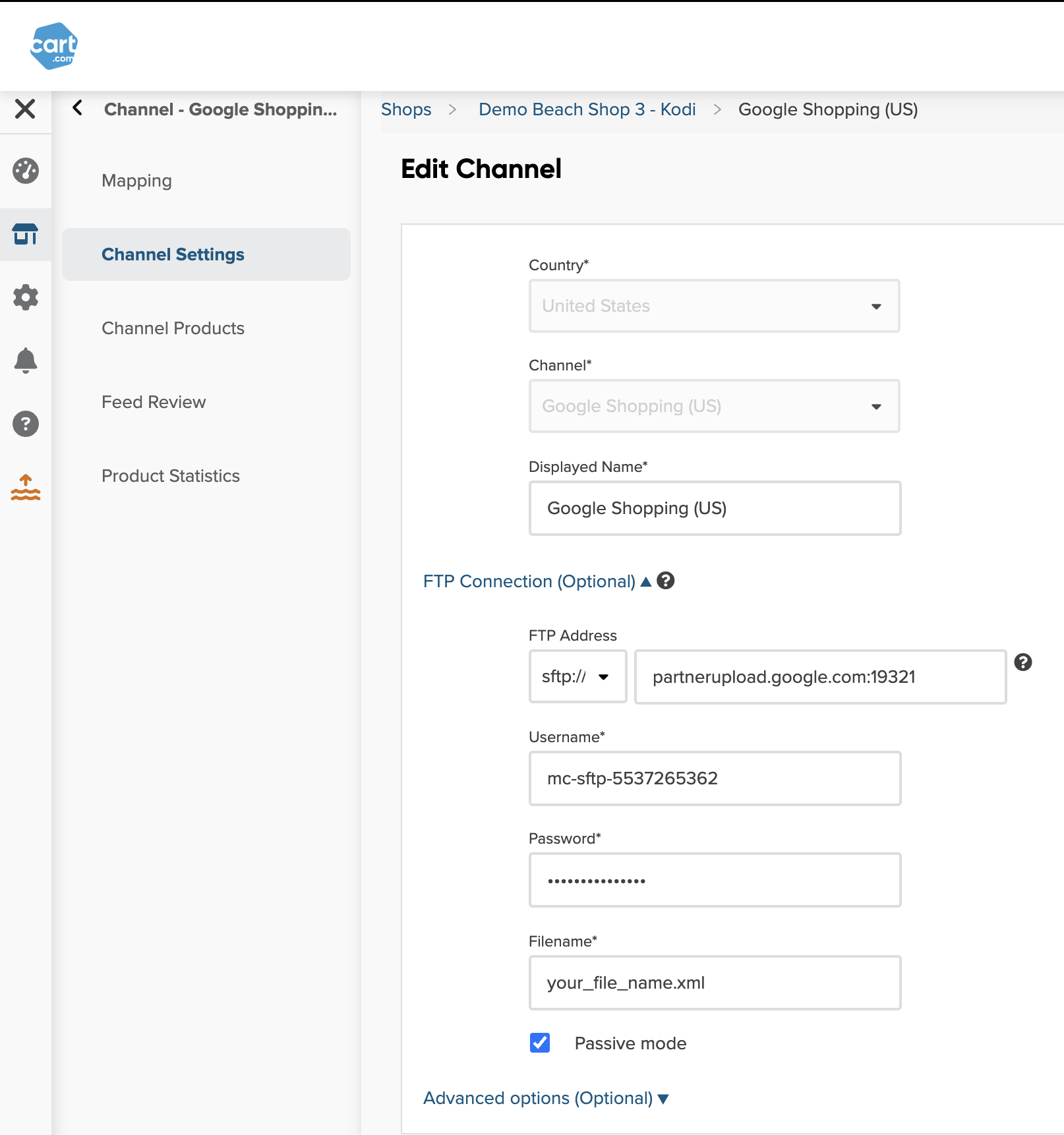
Server partnerupload.google.com
Port 19321
Username mc-sftp-XXXXXXXX
Password (mix of numbers, letters, symbols)
Exact File Name: your-feed.xml
You can reset the password anytime, but you must update it in your sending data source or uploads will stop.
Add your username, password, port, etc. into your sending data source. In DataFeedWatch, combine Server and Port like partnerupload.google.com:19321.
Last Steps
- Data has been received by Google Merchant Center
- Product status is approved or “pending initial review”
- The latest Google SFTP password is in your sending data source
Microsoft Merchant Center
Steps
- Go to Microsoft Advertising → Merchant Center → your store → feed → “Update feed”
- Select “Upload via FTP/SFTP”
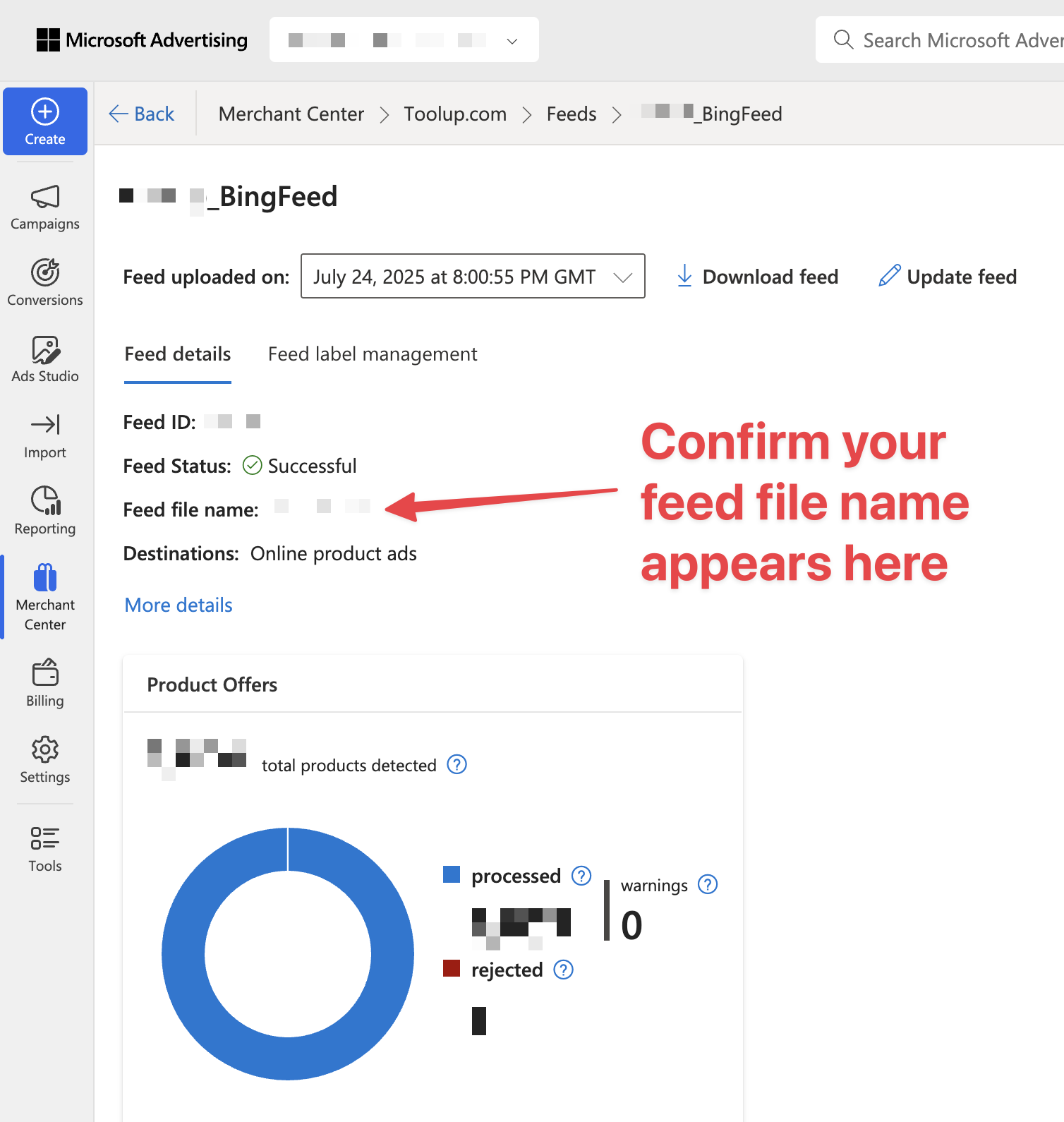
- Create a memorable filename
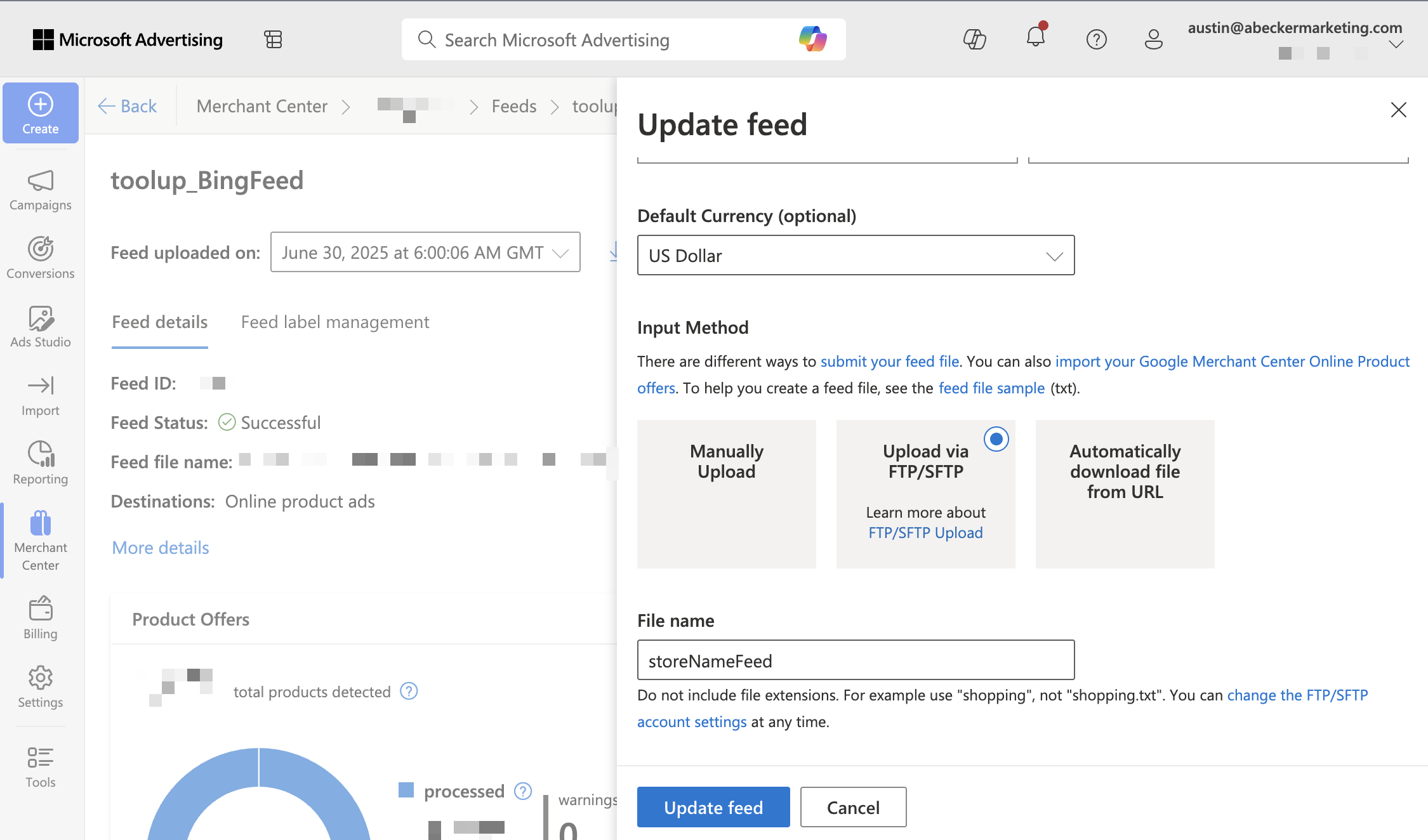
Click “change the FTP/SFTP account settings” and save:
File name: storeNameFeed.xml
SFTP Server name: sftp.ads.microsoft.com
SFTP Port: 19321
Username: (from Microsoft screen)
Password: (strong password)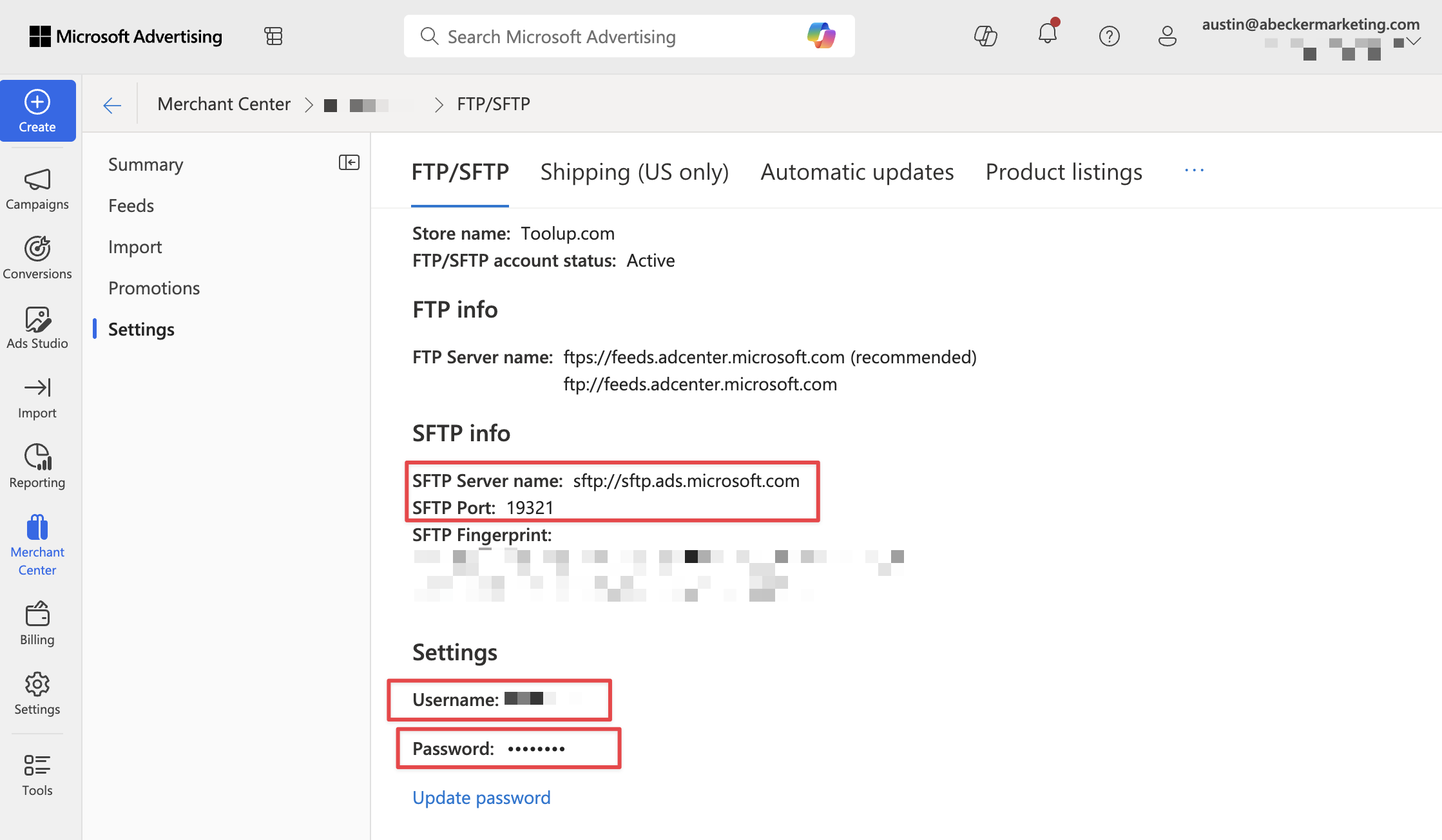
In DataFeedWatch, under FTP Address select sftp:// then enter sftp.ads.microsoft.com:19321, username, password, and filename. Click Update Channel.
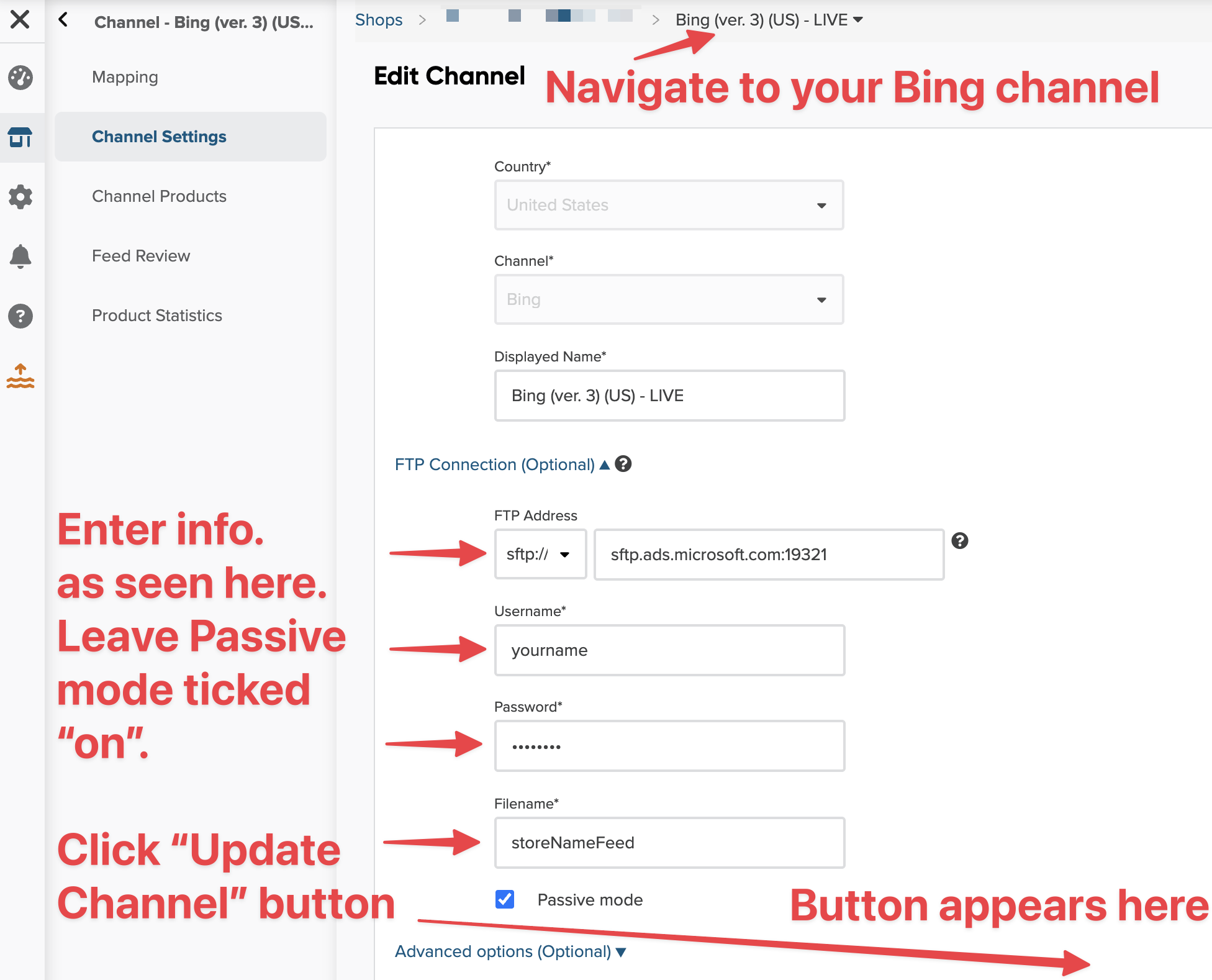
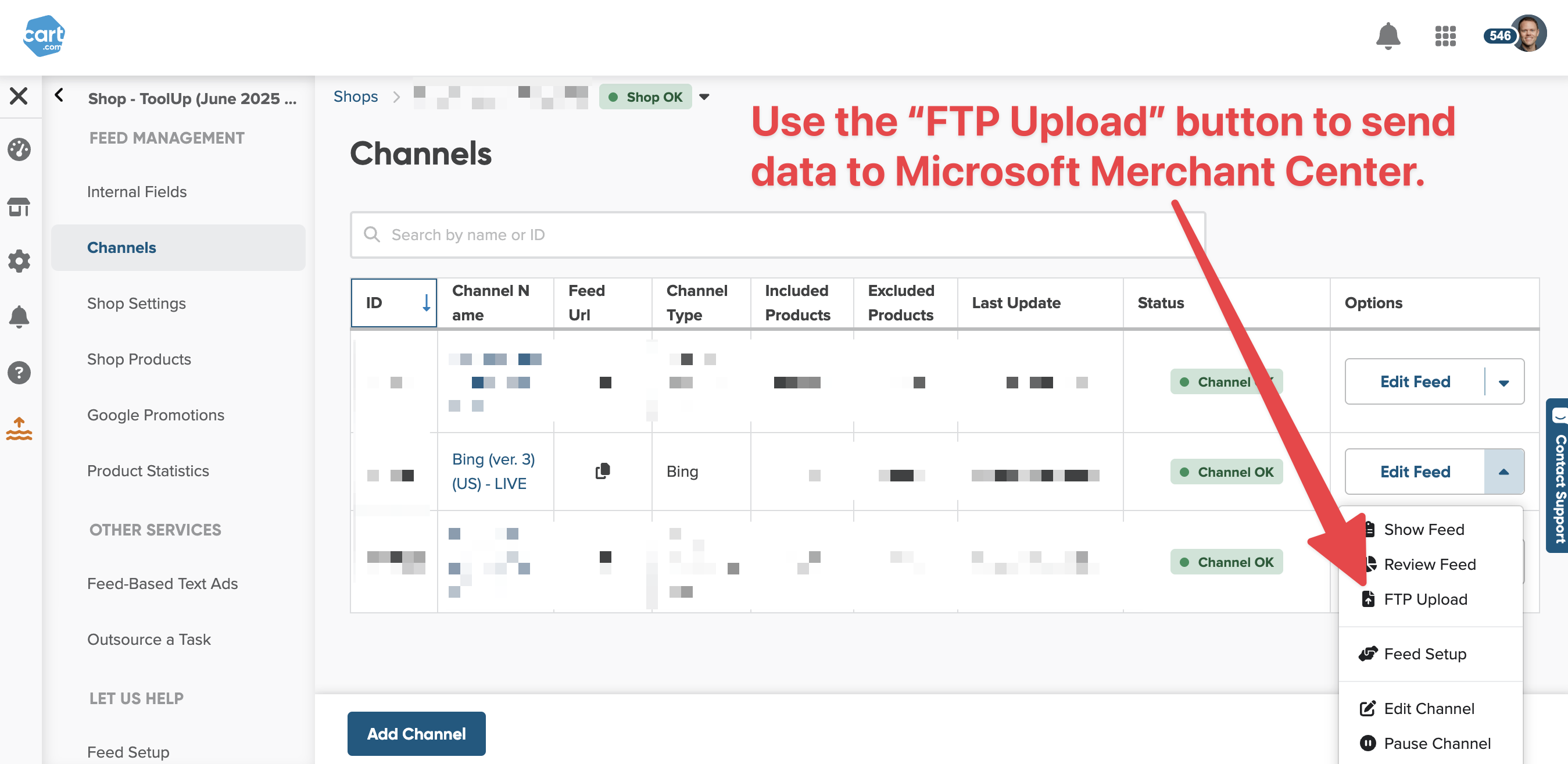
Click the “FTP Upload” button in DataFeedWatch to send the feed.
Last Steps
- Wait 2–3 minutes and check for your SFTP file name in the Merchant Center Feed summary
- Keep checking daily until items are approved for ads