

Complete checklist for sending optimized Shopify product data to Google Merchant Center in 2026 — without breaking historic sales data tied to existing product IDs. Watch the tutorial in the hero video.
Before you begin
You will lose historical click and sales data by changing product IDs. If you have historic sales data, don’t change product IDs. See the full YouTube guide to learn how to re-create existing product_ID formats.
- Make a note of an existing Google Merchant Center account’s product_ID format
- If your GMC product_ID is another code (like PN2019), identify where it comes from: MPN, Barcode, or SKU
- Save a copy of the existing feed before sending a new feed
Oftentimes the product_ID in GMC is shopify_US + product id + variant id. If you created your store in 2026, it’s likely shopify_ZZ, not shopify_US.
Shopify Setup
- Install the Google & YouTube Sales Channel on Shopify
- Connect the Google & YouTube sales channel to Google Merchant Center (requires Super Admin for Business Manager GMC accounts, or Admin for regular GMC)
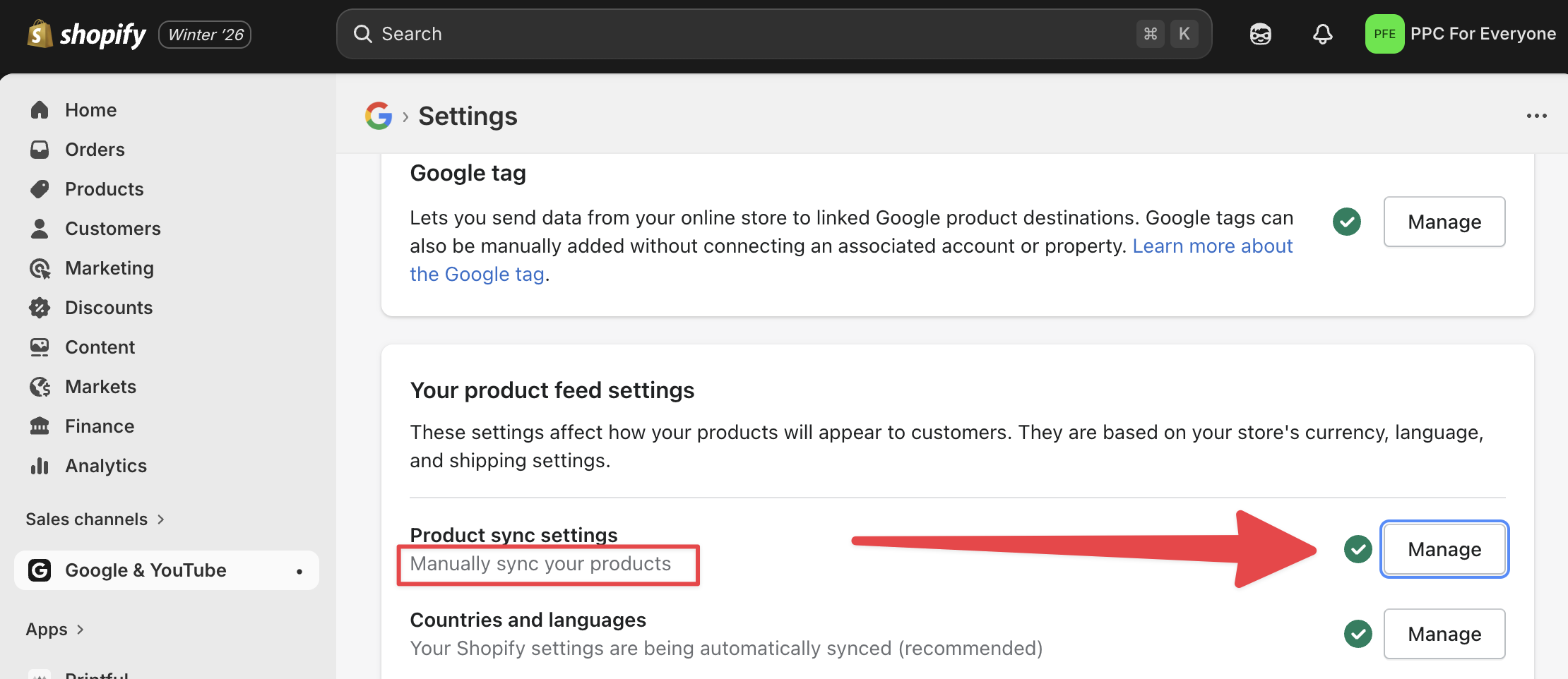
- Turn Off Product sync settings if using DataFeedWatch — we’ll add products via DFW
- Leave remaining settings under “Your product feed settings” unchanged in most cases
How to enable products in sales channels (if not using DataFeedWatch)
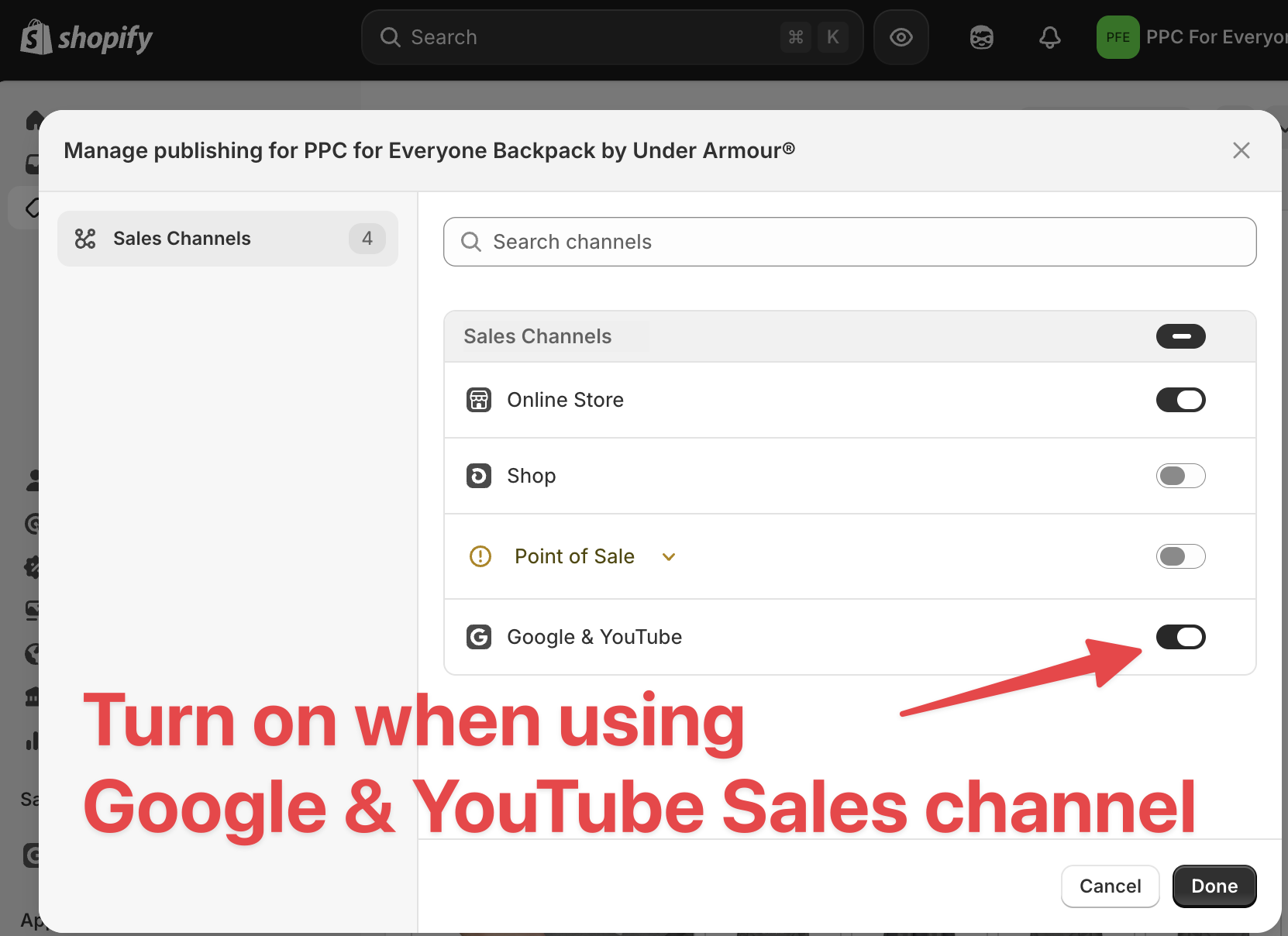
DataFeedWatch Setup
Whether or not you use DataFeedWatch, we recommend a third-party product data feed management tool to optimize product data.
- Install the DataFeedWatch app on Shopify (referral link for extended trial)
- Review and edit Master Fields
- Create a channel for your sales channel — ensure product_IDs match existing product_IDs
- Review and optimize attributes per Google’s product data specification
- Apply exclusions (gift cards, shipping add-ons, etc.)
- Add product categories (Google and Meta require these)
Submit product data feeds
Plan to be online for several hours after submitting a new feed so you can troubleshoot issues.
- Delete any old feeds. If you previously connected the Google & YouTube sales channel to GMC, delete the data source, then set Product sync to Manually sync your products
- Submit product data feeds by file upload or SFTP upload for intraday updates
- Confirm items are approved or pending (wait up to 5 business days if pending)
Troubleshooting
Items could be rejected, or the entire account suspended. Reach out to us or use the tips below.
What if items are rejected?
Check the “Needs attention” report. Misformatted attributes are often the culprit — e.g. price = 99.95 should be price = 99.95 USD.
What if my GMC account is suspended?
Read Google’s Shopping ads policies carefully. Remove trigger words from descriptions (e.g. mentioning a banned substance even to say a product does not contain it).
Health-related disapprovals
Misrepresentation
Typically caused by insufficient contact information or a mismatch between your shop name and URL. See Misrepresentation policy. Add real contact info — not a PO Box or virtual address.
Sources cited
- Product data specification (Google)
- Title attribute
- Price attribute
- Meta catalog product data specifications
- DataFeedWatch pricing (referral)
Related: GMC SFTP File Upload · Fix Cart Data Errors · 2026 Conversion Tracking Guide