

Who is this for?
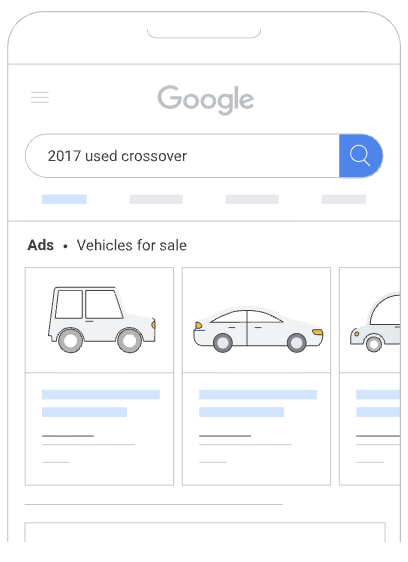
RV and auto dealerships that want to run ads in the “shopping ads” section of Google.com search results.
Motorcycles, boats, airplanes, and other vehicles might not be eligible right now. Keep checking Google’s eligibility documentation as the program expands.
Pre-2026, only large players like Carvana and Camping World could advertise vehicle inventory on Google Shopping ads. Smaller and mid-size dealerships can now list inventory with the right Merchant Center setup and vehicle feed data.
Steps
Follow the steps below, along with the YouTube video guide at the top of this page, to list your vehicles.
Google merchant and business preparation
Prepare your Google Merchant Center and Google Business accounts. This assumes that you’ve already verified your business on Google Merchant Center and have an approved Google Business profile.
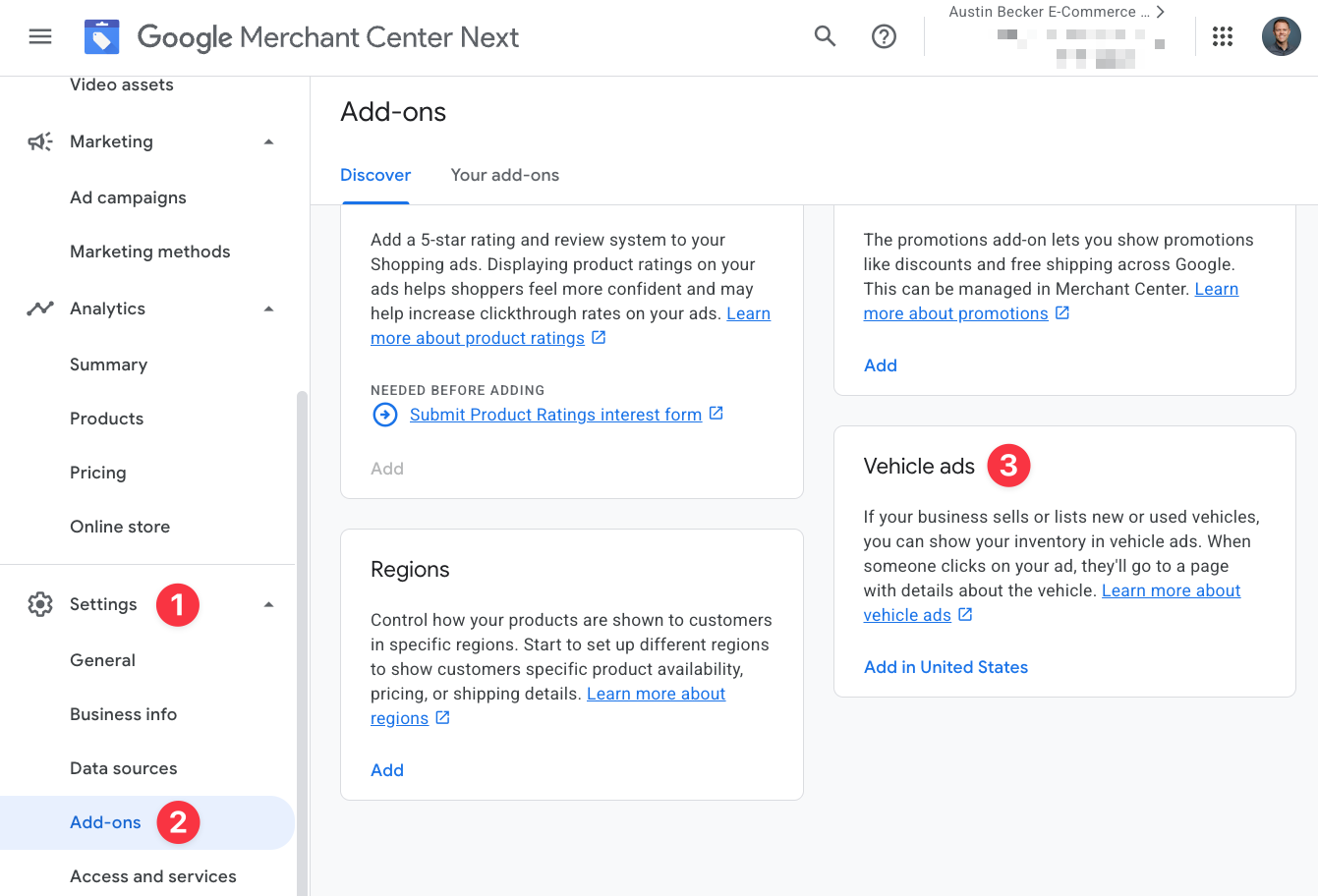
- Enable the Vehicle Ads add-on in Merchant Center.
- Link your Google Business “stores” to Google Merchant Center.
- Find your store code(s) at business.google.com/locations and save them.
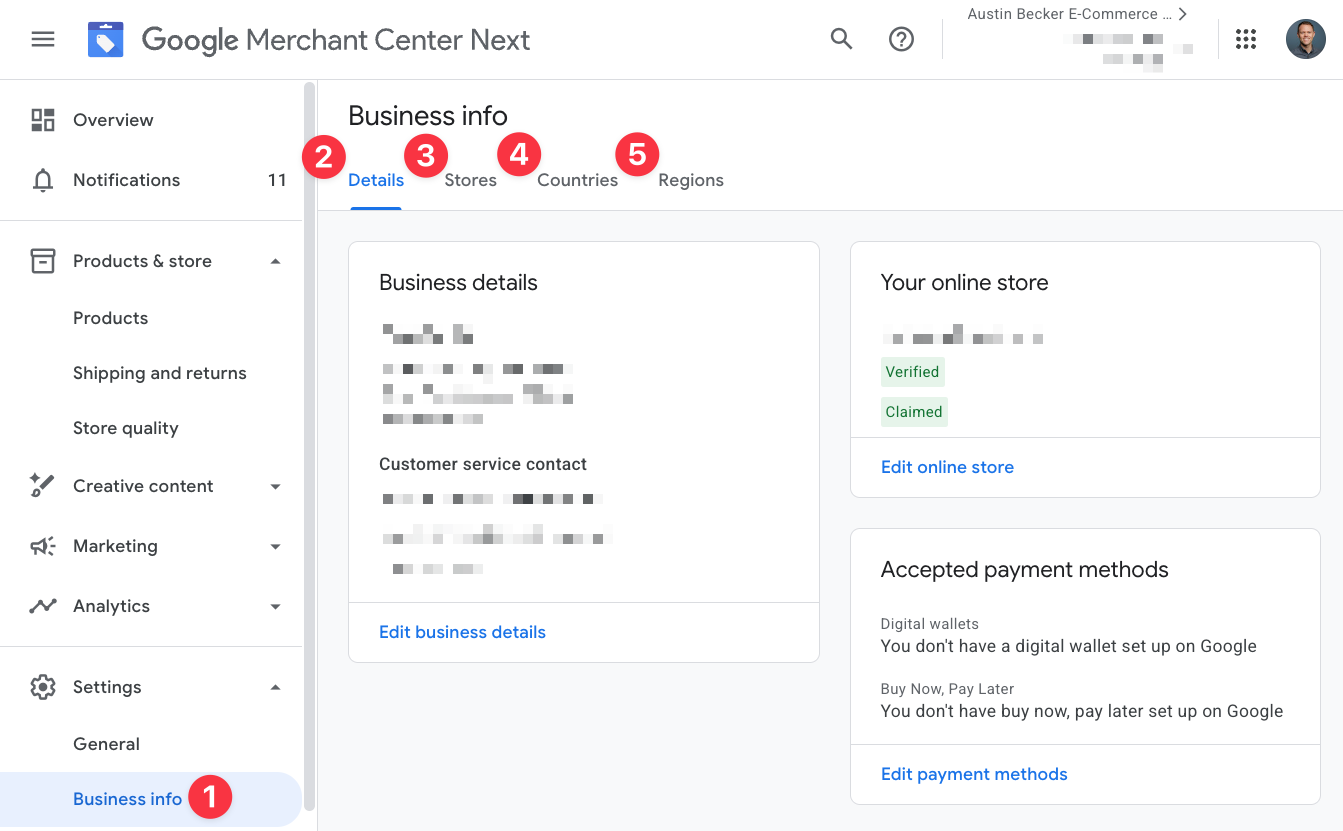
- Under Settings > Business Info, ensure that Details and Stores are in place.
- Add your country (required).
- (Optional) Add your region(s).
As of Q2 2026, only Australia, Canada, and the USA are open for vehicle ads. France, Germany, Italy, Netherlands, Spain, and the United Kingdom are open for beta. Check Google’s prerequisites and submit an onboarding form if you are in a beta market.
Data preparation
Prepare your vehicle data for Google Merchant Center.
Install the DataFeedWatch app on your website by following their onboarding steps. Whether or not you use DataFeedWatch, I recommend a third-party product data feed tool to optimize vehicle data and reduce setup friction.
Vehicle data requirements
You’ll need the below information before you get started:
- Store code from business.google.com/locations
- The following data on your website (if you don’t have this data on your store yet, see the video walkthrough for workarounds):
- VIN
- Year
- MSRP
- Mileage
- Condition
- Make and Model
Recommended software
You can set up Google vehicle listing ads without the below, but these tools can vastly reduce friction in data setup and optimization:
- DataFeedWatch (please use our referral link to support our free tutorials)
Add vehicle listing attributes
See Google’s vehicle listing attribute documentation for the full list. Not all attributes are required in your country. You’ll spend the most time working on attributes — take care to submit them according to the documentation.
Link template
Format your link_template field like this:
your website + product slug + /?store={store_code}
Finished example:
https://www.your-website.com/rvs/2025-forest-river-fr3/?store={store_code}In the above example, {store_code} is meant to be literally {store_code}. Don’t insert your actual store code. Google dynamically adds your store code for tracking.
Attributes by country
- Japan:
vehicle_mandatory_inspection_included - Canada:
vehicle_all_in_price - Australia, Canada, and Japan:
vehicle_price_type - France, Italy, Spain, and Germany:
date_first_registered
It is OK to add the above attributes to countries in which they are not required.
Submit product data feed
Plan to be online for several hours after submitting a new feed so you can troubleshoot issues.
Before you delete any old feeds from Google Merchant Center, save a copy of your data.
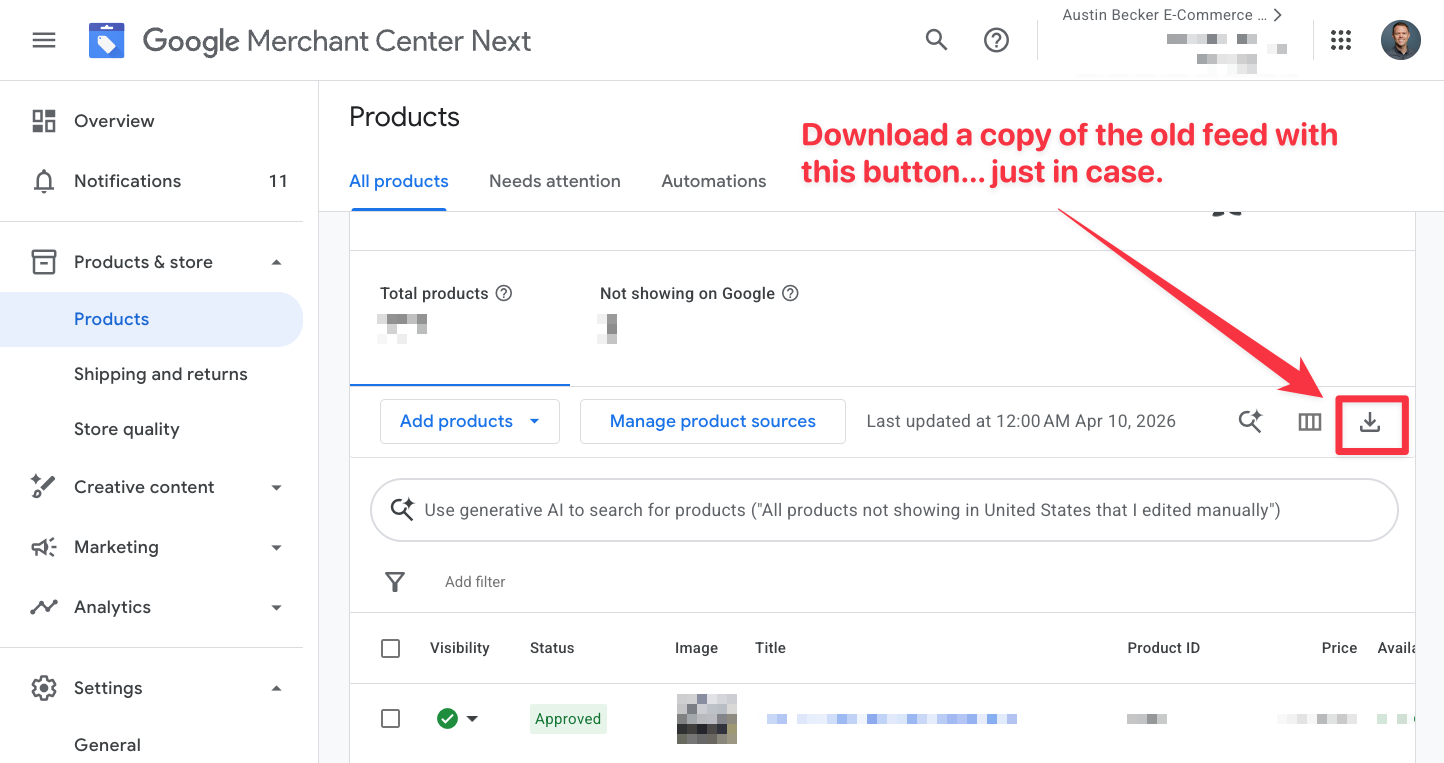
Submit your new vehicle listing data feed to Google Merchant Center.
Do you update your pricing and inventory multiple times per day? If yes, use the SFTP file upload method for intraday updates. See our guide on Google Merchant Center SFTP file upload for the fastest data updates.
Confirm that items are approved or pending. If pending, wait two business days, then reach out to Google Merchant Center support.
Troubleshooting
Items could be rejected, or the entire account suspended, if you submit the wrong data or violate a Google policy. Reach out to us at abeckermarketing.com/contact, or find answers to common issues below.
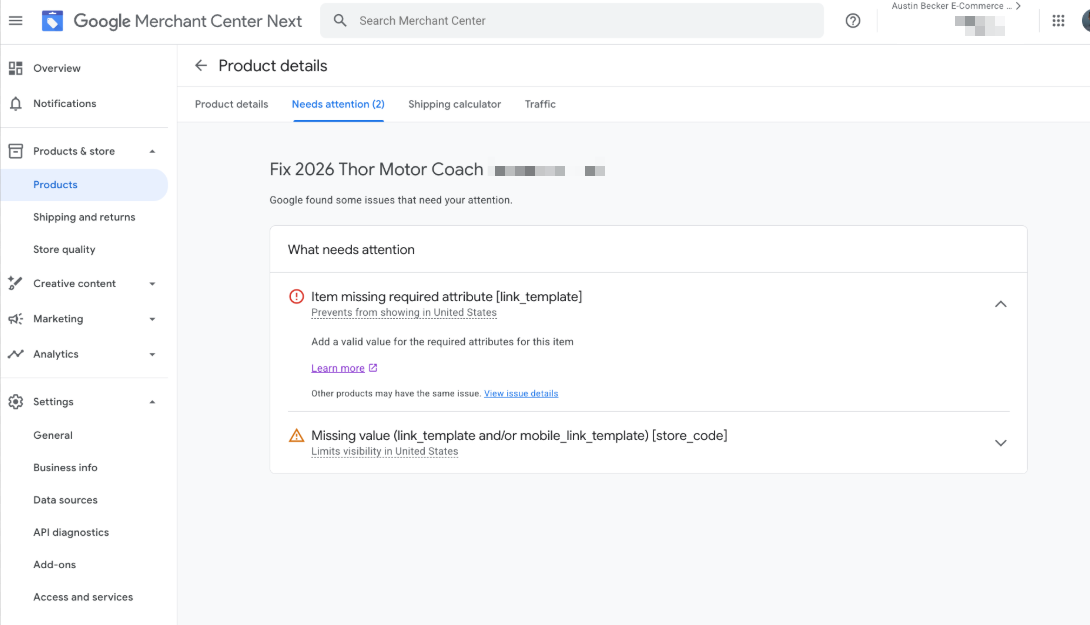
Item missing required attribute [link_template]
This means that your link template is non-existent or mis-formatted. Check the link template section above.
Missing value (link_template and/or mobile_link_template) (store_code)
It’s likely that your store is not connected to your Google Merchant Center account. Revisit the merchant and business preparation steps.
Other reasons for feed disapproval
Check the “Needs attention” report. Misformatted attributes are often the culprit. For example, a missing currency code:
- Wrong:
price = 99.95 - Fixed:
price = 99.95 USD
Merchant Center account suspension
Solve this by carefully reading Google’s Shopping ads policies page. Find anything that Google might rightly or wrongly flag your account for.
For example, if your product description states “product does not contain ephedra,” Google bots might believe the product does contain ephedra. Ephedra is an unapproved pharmaceutical substance in Google Shopping. Remove that word from the description altogether in this case.
Misrepresentation
This warning comes up often. It is typically caused by insufficient contact information, a mismatch between your shop’s name and URL, a mismatch between your business name in Google Merchant Center and the name on your actual shop, or similar issues.
See Misrepresentation — Google Merchant Center Help.
- Add real contact info to your shop. Not a PO Box or virtual address, or fake phone numbers.
- Assume you’re the shopper — is your website misleading in any way? You wouldn’t purchase from a business that misleads you. The Misrepresentation Policy finds and enforces this.
Sources cited
- Vehicle ads overview — Google Merchant Center Help
- Google Ads product taxonomy with IDs
- Product data specification — Google Merchant Center Help
- Title [title] and structured title — Google Merchant Center Help
- Price [price] — Google Merchant Center Help
- Sale price [sale_price] — Google Merchant Center Help
- Shopping ads policies — Google Merchant Center Help
- DataFeedWatch referral link
- 2026 Google Merchant Center Full Setup
- Google Merchant Center SFTP File Upload